


Teams
A team is a shared workspace. Everyone in it plans loads with the same library and sees the same history.
Your own account and your team
When you sign up you get a personal account. A team is a separate workspace next to it. You keep your personal account when you join a team, and you can belong to more than one team.
Nothing moves between the two by itself. A load you planned in your personal account stays there, and the team library does not show up in your personal account. Your personal plan is also separate from the team and keeps running until you cancel it.
Switching between workspaces
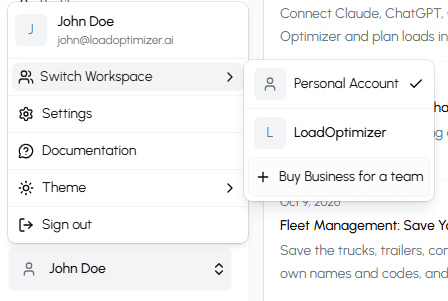
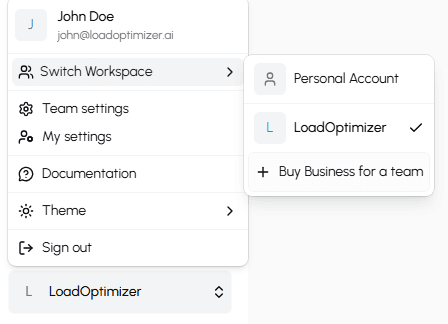
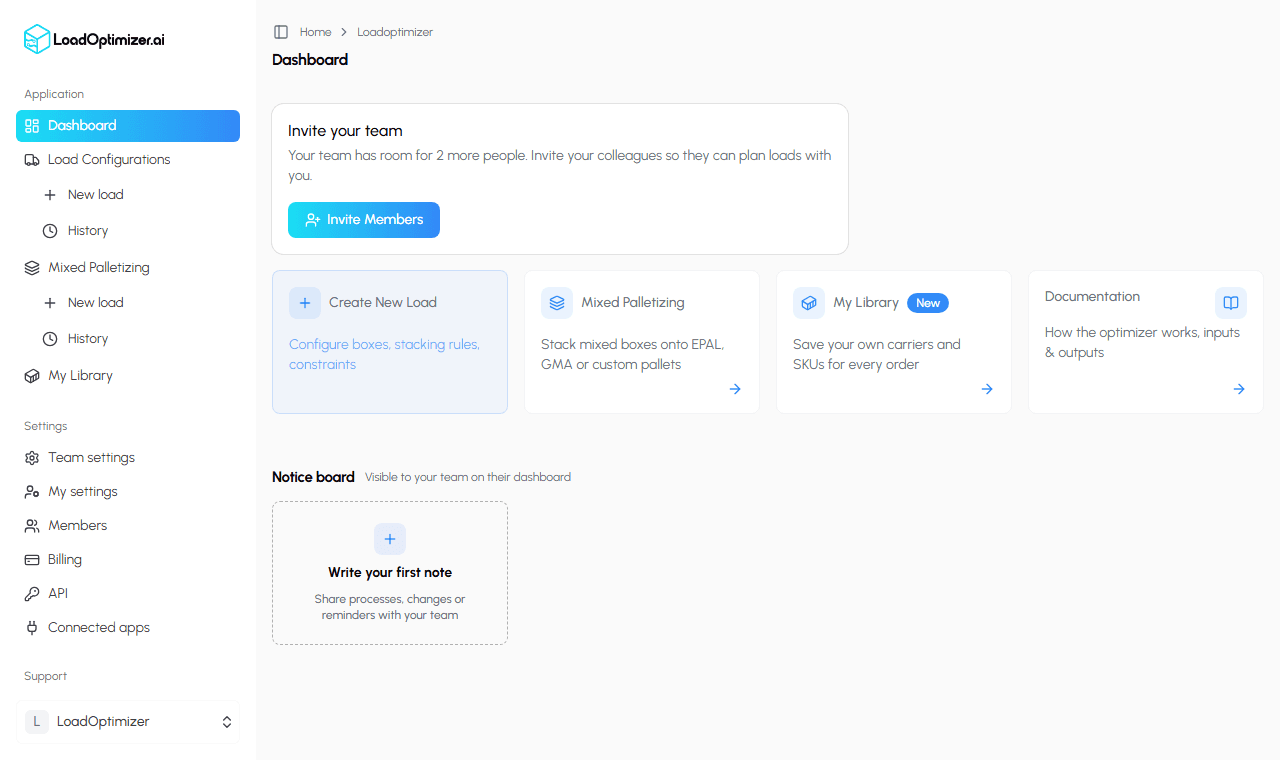
The menu at the bottom of the sidebar shows where you are: your own name in your personal account, the team name in a team. Open it, point at Switch Workspace and choose Personal Account or one of your teams. A check mark shows the workspace you are in.
Starting a team
A team comes with the Business plan. Business is bought for a team, not for your personal account.
- 1
Open the menu at the bottom of the sidebar, point at Switch Workspace and choose Buy Business for a team.
- 2
Give your team a name and choose monthly or yearly billing.
- 3
Choose Continue to payment and pay in the window that opens.
- 4
Once the payment is confirmed, your new team opens. You are its owner.
A team you have not paid for yet waits for you. Open the Business page again to complete the payment. You can have one unpaid team at a time.
Roles
Every member has a role. The role decides what they can do in the team.
| Role | What they can do |
|---|---|
| Owner | Plans loads and manages the library, members, billing and team settings. |
| Admin | Plans loads and manages the library. |
| Planner | Plans loads and uses the library. |
| Finance | Manages the subscription and billing. Cannot plan loads. |
The person who started the team is its primary owner. Only the primary owner can delete the team. To hand the team over, choose Transfer Ownership on the Members page.
Seats
A Business team has 3 seats, yours included. Every member takes a seat, whatever their role. An invitation takes a seat too, until it is accepted, expires or is revoked. The Members page shows how many seats are in use.
Need more seats? Get in touch with us. Contact us
Inviting people
Owners invite people from the Members page with Invite Members. The dialog has two tabs.
Each person gets an email with a link. They sign in, or create an account if they have none, and choose Accept invite. An invitation is valid for 7 days. If someone cannot find the email, choose Send again next to their invitation on the Members page.
Leaving a team
You can leave a team on the Team settings page. To come back you need a new invitation. The primary owner cannot leave: transfer ownership to another member first.